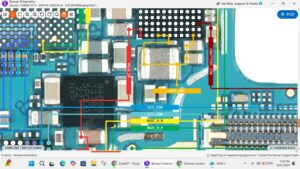
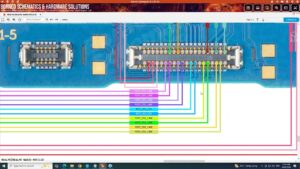
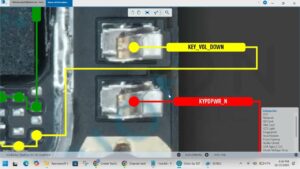
✅ Samsung Galaxy A36 Power Button & Volume Keys Problem FULLY SOLVED!
In this video, I cover every physical button issue on the Samsung Galaxy
A36 5G — power/side button not working, volume keys stuck or unresponsive,
Bixby opening instead of power menu, screenshot combo not working,
and full hardware repair tips.
⚡ CHAPTERS — Jump to your problem below ⬇️
🔧 ALL BUTTON PROBLEMS COVERED:
– Samsung A36 power/side button not working fix
– Samsung A36 volume up / volume down button not responding
– Samsung A36 side key opening Bixby instead of power menu
– Samsung A36 stuck or jammed volume button fix
– Samsung A36 can't take screenshot (button combo not working)
– Samsung A36 phone won't turn on / off without button
– Software workaround — turn off A36 WITHOUT power button
– One UI 7 Side Key remap — disable Bixby, enable Power Menu
– Safe Mode & accessibility button fixes
– Hardware inspection & Samsung service center guide
━━━━━━━━━━━━━━━━━━━━━━━━
📌 RELATED SEARCHES THIS VIDEO ANSWERS:
Samsung A36 power button not working | Samsung A36 side key problem |
Samsung A36 volume button not responding | Samsung A36 Bixby side key fix |
Samsung Galaxy A36 stuck button | Samsung A36 can't turn off phone |
Samsung A36 5G button solution 2025 2026
━━━━━━━━━━━━━━━━━━━━━━━━
⚠️ IMPORTANT: On the Samsung Galaxy A36 5G, the Side button (Power button)
is set to launch Bixby by default on a long press — NOT the Power Menu!
To fix this, go to Settings Advanced Features Side Button Long Press
Power Off Menu. This is the #1 most missed setting on the A36!
💬 Drop your specific button issue in the comments — I reply to everyone!
👍 Found this helpful? LIKE, SUBSCRIBE & hit the 🔔 for more Samsung fixes.
#SamsungA36 #SamsungA365G #PowerButton #VolumeButton #GalaxyA36Fix